
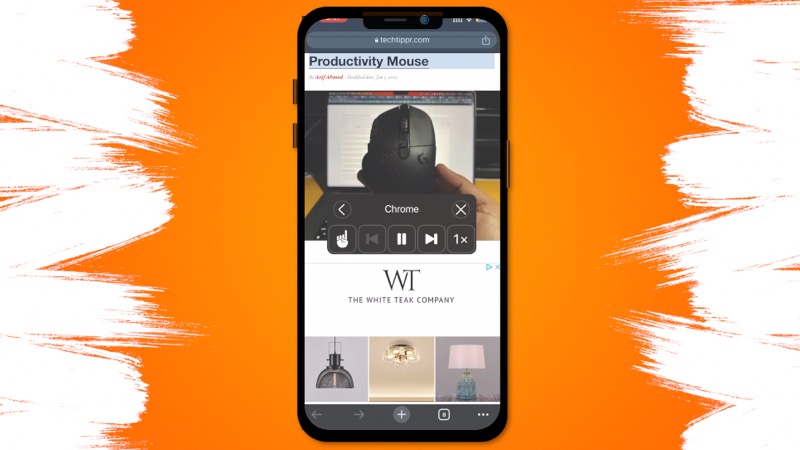
Looking for a free text to speech solution for iPhone that actually works without downloading any extra app? You already have everything you need built right into your iPhone. With a simple shortcut, you can turn any webpage or article into audio — and listen to it at your own pace, hands-free. Let me show you exactly how to set it up.
Why Use Free Text to Speech on iPhone?
There are more use cases for this than you might think. Here are a few situations where having your iPhone read articles aloud can genuinely make your life easier:
- Speed reading: Listening at 1.25x or 1.5x speed helps you get through long articles faster than reading them on screen.
- Commuting or multitasking: Pop in your earphones and catch up on articles while travelling, cooking, or working out.
- Eye strain: Late at night when you don’t want to stare at a screen, just let your iPhone read to you instead.
All of these scenarios are covered by one simple iPhone shortcut — no paid app required.
Watch the Video Tutorial
Prefer to follow along visually? Check out the full video walkthrough below:
The Built-In Speak Screen Feature
Before we get to the shortcut, it’s worth knowing that your iPhone already has a native accessibility feature called Speak Screen. You can find it under Settings → Accessibility → Spoken Content → Speak Screen.
Once enabled, simply swipe down from the top of your screen with two fingers while on any webpage, and your iPhone will start reading the content aloud. You can also adjust the playback speed — 1x, 1.5x, 2x — right from the reading toolbar that appears.
It works well, but there is an even smoother way to do this. Using an iPhone shortcut, you can trigger the same text-to-speech functionality directly from the share sheet — making it faster and more convenient to use across any browser.
How the iPhone Shortcut Works
The shortcut is straightforward. Once set up, here’s how you use it:
- Open any article or webpage in Safari or Chrome.
- Tap the Share button.
- Scroll down and tap your shortcut (named “Speak Text” or whatever you choose to call it).
- The shortcut grabs the text from the page and feeds it directly into your iPhone’s built-in text-to-speech engine.
- Playback begins immediately — with full control over voice, speed, and pitch.
You only need to grant permission the first time you run it. After that, it works instantly every time.
How to Create the Free Text to Speech Shortcut on iPhone
Ready to build it? Follow these steps inside the Shortcuts app:
- Open the Shortcuts app and tap the + button to create a new shortcut.
- Search for and add the “Get Contents of Webpage” action.
- Next, add the “Get Text from Input” action — this extracts the readable text from the page content.
- Add the “Speak Text” action and customise it — set your preferred voice, speed, and pitch.
- Make sure the actions are connected in order: Get Contents → Get Text → Speak Text.
- Name the shortcut something recognisable, like “Listen to Articles” or “Speak Text”.
- Enable Share Sheet access so the shortcut appears whenever you tap the share button on a webpage.
That’s it — your shortcut is ready to use.
Using the Shortcut Every Day
Once the shortcut is in place, using it takes just a few seconds:
- Open any article in Safari or Chrome.
- Tap the Share button.
- Tap your “Listen to Articles” shortcut.
- On first use, allow the access permission prompt.
- The article text will start playing aloud right away.
From that point on, you can lock your screen, put your phone in your pocket, and just listen — perfect for commuting or winding down at night.
Start Using Free Text to Speech on Your iPhone Today
This is honestly one of the most practical iPhone shortcuts you can build. Whether you want to speed through your reading list, multitask during your commute, or simply rest your eyes after a long day — this free text to speech method for iPhone gets the job done without any third-party app.
Give it a try and let us know how it works for you. And if you found this useful, check out more iPhone shortcut tips on Techtippr.
Not an iPhone user? No problem — here are more ways you can listen to articles using text to speech (TTS) technology on other devices.