
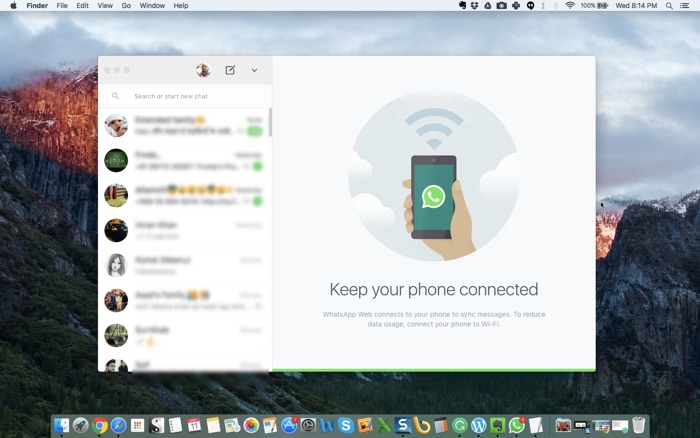
WhatsApp sirf phone ke liye nahi hai — desktop par bhi equally comfortable use hota hai. Laptop ya PC par kaam karte waqt WhatsApp open rehna productivity ke liye bahut helpful hota hai — phone uthane ki zaroorat nahi, directly keyboard se reply kar sakte hain, aur large files easily share kar sakte hain.
WhatsApp Desktop app aur WhatsApp Web — dono options hain, lekin dono mein farak hai. Is guide mein dono cover karenge plus best tips.
WhatsApp Desktop app (native) WhatsApp Web se better hai — faster, more features, notifications properly kaam karte hain, aur phone ke bina bhi limited use ho sakta hai (linked devices feature). Windows: Microsoft Store se download karein. Mac: App Store se ya whatsapp.com/download se.
WhatsApp Web vs WhatsApp Desktop App — Kya Farak Hai?
WhatsApp Web (web.whatsapp.com):
- Browser mein kaam karta hai — koi download nahi
- Phone connected hona zaroori tha (purane versions) — ab linked devices mein independent bhi
- Limited features — kuch WhatsApp features browser mein nahi hain
- Notifications browser notifications hain — miss ho sakte hain
WhatsApp Desktop App (Native):
- Install karna padta hai — lekin better experience deta hai
- Faster performance — native app hai
- Better notifications — taskbar/system tray se
- Keyboard shortcuts properly kaam karte hain
- Calls (voice + video) also work in desktop app
- Screen sharing from desktop
Recommendation: Desktop app use karein — ek baar install karo aur bahut better experience milta hai.
WhatsApp Desktop Install Karna — Windows
Method 1: Microsoft Store (Recommended)
- Start menu → Microsoft Store open karein
- “WhatsApp” search karein
- Official WhatsApp app → Install
- Install complete hone par app open karein
Method 2: Official Website se
- whatsapp.com/download par jaayein
- Windows ke liye .exe file download karein
- Installer run karein → install karein
Internet par kaafi “WhatsApp for PC” ya “GB WhatsApp” type apps milte hain — yeh unofficial hain aur dangerous ho sakte hain. Sirf official WhatsApp (Meta ka) use karein — Microsoft Store, Apple App Store, ya whatsapp.com/download se.
WhatsApp Desktop Install Karna — Mac
- Mac App Store kholein
- “WhatsApp” search karein — official Meta app select karein
- Get → Install
- Ya whatsapp.com/download se .dmg file download karein → install karein
First Time Setup — Phone se Link Karna
- Desktop app open karein — QR code dikhega
- Phone par WhatsApp open karein
- Three dots (Android) ya Settings (iPhone) → Linked Devices
- “Link a Device” tap karein
- QR code scanner se desktop ka QR code scan karein
- Done! Desktop app sync ho jayega
Linked hone ke baad, phone band karne par bhi desktop app approximately 14 din tak independently kaam kar sakta hai — “Linked Devices” feature ki wajah se.
WhatsApp Desktop Key Features
File Transfer
Desktop app se bade files easily bhejein — photos, videos, documents, aur zip files. Computer se directly drag and drop karein chat mein.
Voice aur Video Calls
Desktop app par voice aur video calls fully kaam karte hain — headphones ya built-in mic/camera se. Screen sharing bhi desktop app mein available hai.
Keyboard Shortcuts
- Ctrl+N — New chat
- Ctrl+F — Search
- Ctrl+Shift+[ — Previous chat
- Ctrl+Shift+] — Next chat
- Ctrl+E — Archive chat
- Ctrl+Shift+M — Mute notification
- Enter — Send message, Shift+Enter — New line
Notifications
Desktop app mein notifications system tray se aate hain — phone ki tarah. Settings → Notifications mein customize kar sakte hain: sounds, pop-ups, notification preview on/off.
WhatsApp Desktop Tips
Startup par launch: Desktop app → Settings → General → “Open WhatsApp at login” enable karein — Windows/Mac start hone par WhatsApp automatically launch hoga.
Dark mode: Settings → General → Theme → Dark select karein. Late night kaam karne waalon ke liye helpful.
Font size: Settings → Chats → Font Size — Small/Medium/Large choose karein apni preference se.
Office ya shared computer par WhatsApp use karte hain? Kaam khatam hone ke baad log out zaroor karein ya “Lock Screen” enable karein: Settings → Privacy → Screen Lock. Agar office computer hai aur aap akele use nahi karte, WhatsApp Web better option hai — browser close karne par session end ho jaata hai.
□ WhatsApp Desktop app install kiya (Microsoft Store / Mac App Store)
□ Phone se QR code scan karke link kiya
□ Notifications settings configure ki
□ “Open at login” enable kiya
□ Dark mode set kiya (optional)
□ Keyboard shortcuts practiced
Conclusion
WhatsApp Desktop app ek solid productivity upgrade hai — especially agar din mein zyada PC/Mac use karte hain. Native app, proper notifications, voice/video calls, screen sharing, aur keyboard shortcuts — yeh sab milakaar WhatsApp experience genuinely better banate hain compared to sirf phone use karna ya WhatsApp Web. Ek baar install karo, phone se link karo, aur desktop ka full potential use karo.