
- 01Fix 1: Background Downloads Pause Karein
- 02Fix 2: Play Store Cache aur Data Clear Karein
- 03Fix 3: Google Play Services Cache Clear Karein
- 04Fix 4: Internet Connection Check Karein
- 05Fix 5: Date aur Time Sync Karein
- 06Fix 6: Google Account Remove aur Re-add Karein
- 07Fix 7: Storage Space Free Karein
- 08Fix 8: Play Store Update Karein
- 09FAQ — Play Store Download Pending
- 10Conclusion
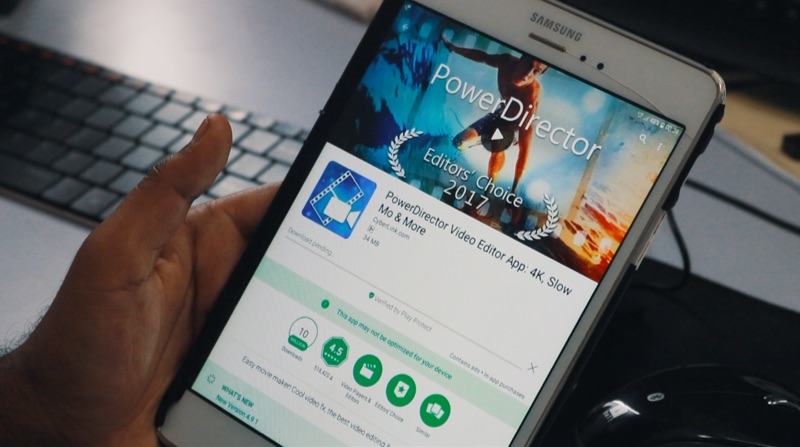
Play Store se app download karna start kiya aur “Download Pending” ya “Queued” status pe atak gaya? Yeh error tab aata hai jab Play Store download queue mein koi problem hoti hai — background updates, network issues, ya account glitch. Is guide mein hum 8 proven fixes cover karenge jo 2026 mein Android phones pe kaam karte hain.
Short Answer: Sabse common fix hai Play Store aur Google Play Services ka cache clear karna aur internet connection check karna. Settings → Apps → Google Play Store → Storage → Clear Cache. Phir Play Store restart karein. 70% cases mein yeh kaam karta hai. Background auto-updates bhi queue block kar sakte hain — temporarily disable karein.
Fix 1: Background Downloads Pause Karein
Aksar ek app download ho raha hota hai background mein (auto-update) aur woh queue block kar deta hai naye downloads ke liye:
Official flow:
Play Store open karein → Profile icon → Manage apps & device → Updates available → Pause downloads (ya cancel all updates) → Phir naya app download try karein
Alternatively: Play Store notification bar mein agar koi update chal rahi hai toh notification pe tap karein aur pause/cancel karein.
Fix 2: Play Store Cache aur Data Clear Karein
- Settings → Apps (ya Application Manager) → Play Store
- Storage → Clear Cache tap karein
- Phir Play Store open karein aur download try karein
Agar cache clear se nahi hua toh: same jagah Clear Storage (ya Clear Data) tap karein. Yeh Play Store ko fresh state mein restart karega — aapka account logged out ho sakta hai, wapas login karna padega lekin downloads aur purchases safe rehti hain.
Fix 3: Google Play Services Cache Clear Karein
Play Store sirf ek frontend hai — actual downloading Google Play Services karta hai. Uska cache bhi clear karein:
- Settings → Apps → Google Play Services (All apps mein dhundhen)
- Storage → Clear Cache
- Phone restart karein
Fix 4: Internet Connection Check Karein
- WiFi se mobile data pe switch karein aur try karein
- Airplane mode 10 second ON karein → OFF karein → reconnect
- Chrome mein koi website open karein — internet actually kaam kar raha hai?
- VPN use kar rahe hain toh temporarily OFF karein
Play Store WiFi pe better kaam karta hai large apps ke liye. Settings: Play Store → Profile → Settings → Network preferences → App download preference → Over any network (WiFi only se change karein agar tha).
Fix 5: Date aur Time Sync Karein
Galat date/time se Play Store authentication fail ho sakta hai:
- Settings → General Management → Date and time → Automatic date and time → ON
- Automatic time zone bhi ON karein
- Phir Play Store try karein
Fix 6: Google Account Remove aur Re-add Karein
- Settings → Accounts aur Backup → Manage accounts
- Google account select karein → Remove account
- Phone restart karein
- Settings → Accounts → Add account → Google → Login karein
- Play Store open karein → Download try karein
Warning: Google account remove karne se kuch apps ke login aur data sync temporarily break ho sakta hai — Gmail, Google Drive, Google Photos ke background sync ruk jaayega. Account wapas add karne ke baad sab automatically sync ho jaata hai, lekin ek-do minute connectivity gap hogi. Sync karne ke liye Wi-Fi pe rehna better hai.
Fix 7: Storage Space Free Karein
Agar phone storage almost full hai toh Play Store downloads fail ya pending reh sakte hain:
- Settings → Storage → Available space check karein
- Minimum 1-2 GB free hona chahiye smooth downloads ke liye
- Unnecessary files, downloads, ya apps delete karein
- WhatsApp media clean up karein — usually biggest storage consumer
Fix 8: Play Store Update Karein
Outdated Play Store version se bugs aa sakte hain:
- Play Store open karein → Profile → Settings → About → Play Store version
- Tap on version to check for update
- Ya: Play Store search mein “Google Play Store” search karein → Update if available
Checklist — Download Pending Fix:
- ✅ Background auto-updates pause kiye
- ✅ Play Store cache clear kiya
- ✅ Google Play Services cache clear kiya
- ✅ Internet connection test kiya (WiFi + mobile data)
- ✅ Date/time automatic set kiya
- ✅ Storage space check kiya (2 GB+ free)
- ✅ VPN off kiya during download
FAQ — Play Store Download Pending
Ek specific app download nahi ho raha baaki sab hote hain
App incompatible ho sakta hai aapke phone model ya Android version se. App page pe “Compatibility” check karein. Ya app developer ki website pe direct APK available ho.
Download queue clear ho gayi lekin phir bhi pending
Play Store force stop karein: Settings → Apps → Play Store → Force Stop → Reopen. Ya phone completely restart karein — fresh boot pe Play Store services properly restart hoti hain.
Samsung pe specifically Play Store download problem
Samsung pe “Device Maintenance” run karein: Settings → Device Care → Optimize Now. Storage aur memory optimize hone ke baad downloads better kaam karte hain.
Google Play Help Center ↗
Play Store Open Karein
Conclusion
Play Store “Download Pending” error almost always background queue blockage, cache corruption, ya network issue se hota hai. Pehle background auto-updates pause karein aur Play Store cache clear karein — yeh combination 80% cases fix kar deta hai. Agar nahi hua toh Google Play Services cache clear karein aur date/time auto-sync ensure karein. Storage full hona bhi common culprit hai especially entry-level phones pe. Google account remove-readd karna nuclear option hai lekin effectively sab reset kar deta hai.