
Google account hack hona India mein ek common problem hai — khaaskar jab sirf password use kiya jaata hai security ke liye. 2-Step Verification (2SV) enable karne se account security dramatically improve hoti hai. Is guide mein hum Google ke sabse convenient 2SV method — Google Prompts — plus Authenticator app aur SMS options cover karenge.
Short Answer: Google Prompts sabse fast 2-step method hai — naya login attempt hone pe aapke phone pe “Yes, it’s me” / “No” pop-up aata hai, OTP type karne ki zaroorat nahi. Enable karne ke liye: myaccount.google.com → Security → 2-Step Verification → Get Started → Google Prompt select karein.
Google Prompts — Sabse Convenient 2SV Method
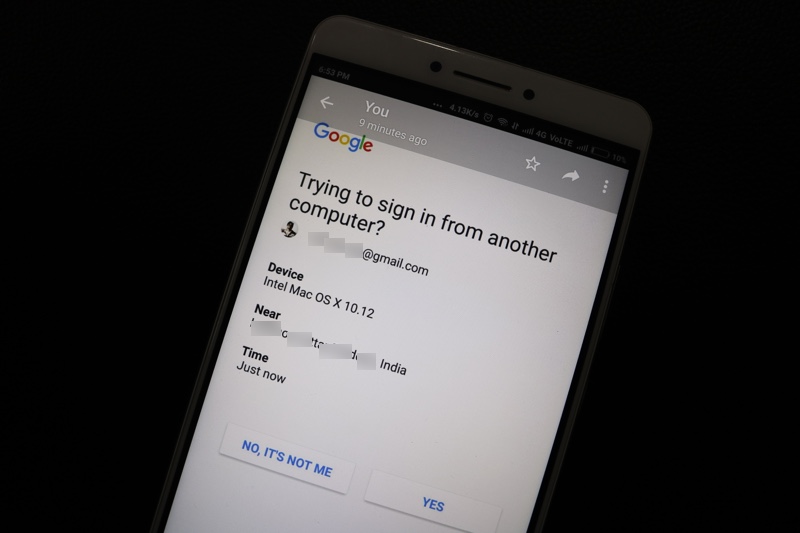
Google Prompts yeh kaam karta hai: jab naye device pe login karte hain, aapke registered phone pe ek notification aata hai “Trying to sign in?” — Yes tap karo aur login ho jaata hai. No OTP, no code — bas ek tap.
Google Prompts Setup flow:
myaccount.google.com → Security → How you sign in to Google → 2-Step Verification → Get Started → Google prompt → Select your phone → Done
Iske liye ek condition hai: aapke Android phone pe same Google account logged in hona chahiye. Google ka Android app ya Gmail app installed hona chahiye. iPhone pe Google ya Gmail app hona chahiye.
Google Prompt pe kya information dikhti hai?
Prompt notification mein dikhayi deta hai: device type, approximate location, aur time. Agar aapne login nahi kiya tha toh “No, it’s not me” tap karein — Google automatically aapke password change karne ki request dega security ke liye.
Google Authenticator App — Offline 2SV
Google Authenticator ek alternative method hai jo internet ke bina bhi kaam karta hai — 6-digit code generate karta hai jo har 30 seconds change hota hai:
- Play Store se “Google Authenticator” install karein
- myaccount.google.com → Security → 2-Step Verification → Authenticator app → Set up
- QR code scan karein Authenticator app se
- App mein jo 6-digit code show hoga woh enter karein verify ke liye
- Done — ab login pe Authenticator se code fetch karna padega
Authenticator app ka advantage: internet nahi chahiye code generate karne ke liye — network-less areas mein bhi kaam karta hai. Disadvantage: phone lost ho jaaye toh backup codes zaroori hain.
SMS OTP — Sabse Common (But Less Secure)
SMS pe OTP receive karna sabse familiar method hai India mein. Setup:
- 2-Step Verification setup mein “Text message” select karein
- India ka phone number add karein (+91 ke saath)
- Test OTP receive karein aur verify karein
SMS 2SV ka limitation: SIM swap attacks aur SMS interception possible hai — yeh technically sabse weak 2SV method hai. Google Prompts ya Authenticator zyada secure hain. Lekin SMS bhi kuch nahi se bahut better hai.
Backup Codes — Emergency Access
2SV enable karne ke baad backup codes zaroor generate karein — yeh tab kaam aate hain jab phone lost/stolen ho:
- 2-Step Verification settings → Backup codes → Generate
- 10 single-use codes milenge
- Inhe safely store karein — secure notes app, printed, ya password manager mein
Warning: Backup codes store karne ke baad unhe safe jagah rakhein — kisi aur ke haath nahi lagte chahiye. Agar backup codes aur phone dono lost ho jaayein toh account recovery process bahut tedious ho jaata hai. Google ka account recovery form fill karna padta hai aur approval guarantee nahi hoti. Backup codes ek secure location pe zaroor rakhein.
Passkeys — Future of Google Login (2024-2026)
Google ab Passkeys push kar raha hai — 2SV se bhi zyada secure aur convenient:
- Passkey = fingerprint ya face ID se login, no password, no OTP
- Setup: myaccount.google.com → Security → Passkeys → Create a passkey
- Phone ka biometric use hota hai authentication ke liye
- Phishing attacks ke against most secure method hai
India mein Passkeys gradually adopt ho raha hai. Agar aapka phone fingerprint/face unlock support karta hai toh Passkey try karein — 2SV se bhi faster aur more secure hai.
Google 2SV ke Saath App Passwords
2SV enable karne ke baad kuch purane apps (like older email clients, Outlook older versions) Google account access nahi kar paate. Inke liye “App passwords” generate karna padta hai:
myaccount.google.com → Security → App passwords → App select karein → Generate → Use that password in the old app instead of your main Google password.
Checklist — Google 2-Step Setup:
- ✅ myaccount.google.com → Security → 2-Step Verification ON kiya
- ✅ Google Prompts as primary method selected
- ✅ Google Authenticator as backup installed
- ✅ Backup codes generate karke safely store kiye
- ✅ Recovery phone number aur email updated hain
- ✅ Passkeys explore kiye (optional but recommended)
FAQ — Google 2-Step Verification
2SV enable karne ke baad gmail app pe bhi OTP maangega?
Pehli baar naye device pe login karte waqt maangega — phir woh device trusted ban jaata hai. Same device pe baar-baar OTP nahi maangega.
Trusted devices manage kaise karein?
myaccount.google.com → Security → Your devices → Unfamiliar devices ko remove karein. 2-Step Verification → Revoke all → sab devices se logout hokar phir verify karna padega.
Google Prompt phone pe nahi aa raha
Phone pe Google account properly logged in hai check karein. Gmail ya Google app force stop karke reopen karein. Phone pe internet ON hai confirm karein. Phone notification settings mein Gmail/Google app notifications ON hain check karein.
Google Account Security Settings ↗
Google Authenticator Download
Conclusion
Google 2-Step Verification account security ke liye sabse important step hai — enable karna 5 minutes ka kaam hai. Google Prompts method sabse convenient hai (phone pe ek tap, done), Authenticator offline backup hai, aur SMS basic fallback hai. Backup codes zaroor generate aur store karein — phone lost hone pe yahi kaam aata hai. Passkeys future hai aur already work karta hai — agar biometric phone hai toh experiment karein. Phishing attacks, credential stuffing, password leaks — sab ke against 2SV ek strong shield hai.