
Quick Answer
You can manage your Wi-Fi router from Android using your router’s official app (TP-Link Tether, D-Link Wi-Fi, ASUS Router, etc.) or by opening your router’s admin panel at 192.168.1.1 in Chrome. Official apps let you block devices, monitor speed, set schedules, and more — directly from your phone.
Why Manage Your Router from Your Phone?
Your router’s admin panel has all the controls — but most people never use them because accessing it from a browser feels complicated. Router apps fix that. You can block a device that’s eating all your bandwidth, set a bedtime Wi-Fi curfew for kids, or check which devices are connected — all in 30 seconds from your phone.
Step 1: Find Your Router’s Official App
| Router Brand | Official App | Play Store Link |
|---|---|---|
| TP-Link | TP-Link Tether | Search “TP-Link Tether” on Play Store |
| D-Link | D-Link Wi-Fi | Search “D-Link Wi-Fi” on Play Store |
| ASUS | ASUS Router | Search “ASUS Router” on Play Store |
| Netgear | Nighthawk App | Search “Netgear Nighthawk” on Play Store |
| Tenda | Tenda WiFi | Search “Tenda WiFi” on Play Store |
| Any router (universal) | Router Admin Setup (3rd party) | Search on Play Store |
Step-by-Step: Set Up TP-Link Tether (Most Common in India)
- Install TP-Link Tether from Play Store.
- Connect your phone to your home Wi-Fi.
- Open Tether → Add device. The app auto-detects your TP-Link router.
- Log in with your router’s admin username/password (usually printed on the router bottom label).
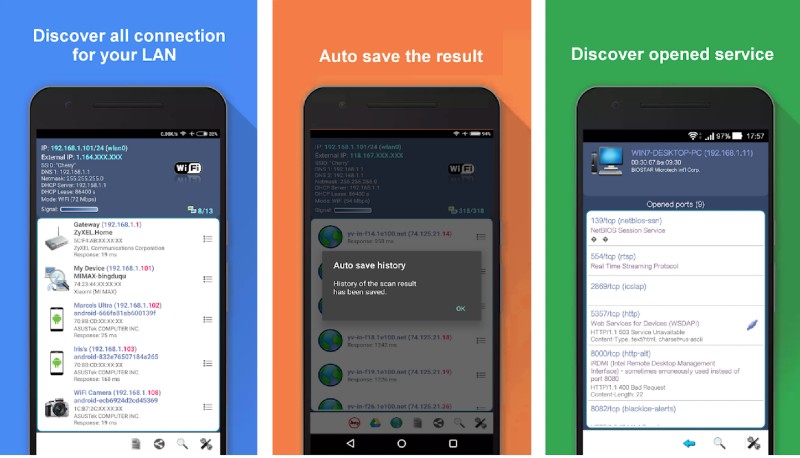
- Now you can: see connected devices, block/unblock devices, set bandwidth limits, restart the router, and more.
What You Can Do from a Router App
- ✅ See all connected devices (and their names/MAC addresses)
- ✅ Block specific devices from Wi-Fi
- ✅ Set scheduled Wi-Fi off times (parental controls)
- ✅ Check real-time internet speed
- ✅ Change Wi-Fi password remotely
- ✅ Restart router without touching it
- ✅ Set up guest network
- ❌ Cannot access router remotely outside your home network (unless the router supports cloud access)
Common Mistakes to Avoid
1. Using third-party “router hacker” apps
Many Play Store apps claim to show Wi-Fi passwords or hack neighbour’s Wi-Fi — these are either fake or malware. Use only official brand apps.
2. Forgetting the router admin password
The default credentials are on the label on the router’s back/bottom. If changed and forgotten, you’ll need to factory reset the router.
3. Blocking your own device by mistake
Before blocking a device, confirm the MAC address or device name. Blocking the wrong device can disconnect your own phone.
FAQs
1. Kya main router ko ghar se bahar se control kar sakta hoon?
Kuch routers cloud-based remote access support karte hain (TP-Link, Netgear). Iske liye router app mein cloud account banana padta hai.
2. Kya main neighbour ka Wi-Fi password phone se dekh sakta hoon?
Nahi. Sirf apne Wi-Fi network ke devices aur settings manage kar sakte hain. Doosre ke network pe access karna illegal hai.
3. Router app mein connected devices mein unknown device dikh raha hai — kya karein?
Device block karo app se, phir apna Wi-Fi password change karo. Koi aur aapka Wi-Fi use kar raha ho sakta hai.
4. Kya ye apps free hain?
Haan, sabhi official brand apps free hain — TP-Link Tether, D-Link Wi-Fi, ASUS Router sab Play Store pe free mein available hain.
5. Mera router brand list mein nahi hai — kya karein?
Browser mein 192.168.1.1 ya 192.168.0.1 open karo — yeh universal router admin panel address hai jo almost sabhi routers pe kaam karta hai.
Home network security tips ke liye visit karein Techtip Alerts.