
- 01Method 1: Button Combination (Sabse Reliable)
- 02Method 2: Palm Swipe Gesture
- 03Method 3: Assistive Touch / Accessibility Menu
- 04Method 4: Bixby Voice se Screenshot
- 05Method 5: Google Assistant se Screenshot
- 06Scroll Screenshot — Pura Page Capture Karna
- 07Partial Screenshot — Screen ka Sirf Kuch Hissa
- 08Samsung Galaxy S-Pen se Screenshot (Note/S Ultra Models)
- 09Screenshot Share aur Edit Karna
- 10FAQs
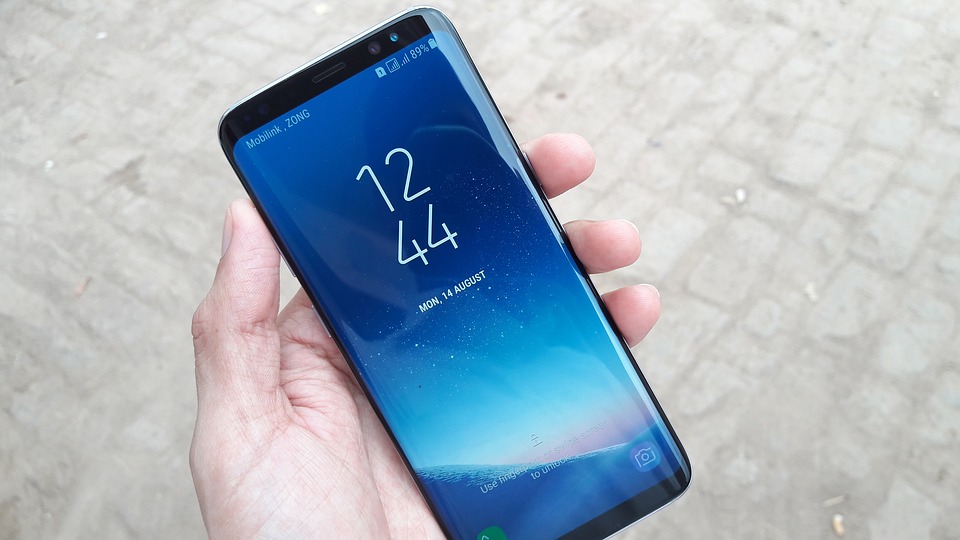
Samsung Galaxy pe screenshot lena ek se zyada tarike se ho sakta hai — button combination, palm swipe gesture, Bixby voice, ya Assistant. Is guide mein Galaxy ke har method ke steps aur model-wise differences batayenge, saath mein scrolling screenshot aur partial screenshot bhi.
Short Answer: Samsung Galaxy pe screenshot ke 3 main methods: (1) Power + Volume Down buttons ek saath dabao 1 second — sabse reliable. (2) Palm swipe: Settings > Advanced Features > Motions and Gestures > Palm swipe to capture on karo, phir haath ki side se screen ke across swipe karo. (3) Long screenshot: Screenshot ke baad neeche ‘Scroll’ tap karo pura page capture karne ke liye.
Method 1: Button Combination (Sabse Reliable)
- Power button + Volume Down button ek saath press karo.
- 1 second hold karo — screen flash hogi aur click sound.
- Notification shade mein screenshot preview aayega.
- Gallery > Screenshots folder mein save hogi.
Yeh method sabhi Samsung Galaxy models pe kaam karta hai — S8, S9, S10, S20, S21, S22, S23, S24, A-series, M-series, sab pe.
Method 2: Palm Swipe Gesture
- Pehle enable karo: Settings > Advanced Features > Motions and Gestures > Palm swipe to capture — toggle ON.
- Haath ki side (pinky finger ki taraf) screen pe left ya right se swipe karo quickly.
- Screen flash hogi — screenshot liya gaya.
Palm swipe useful hai jab ek haath busy ho — awkward double-button press ki zaroorat nahi.
Palm swipe kaam nahi kar raha?
Gesture bahut slow ya bahut fast ho sakta hai. Medium speed mein try karo — haath ki side (edge) screen se touch honi chahiye, fingers se nahi. MIUI ya third-party launchers pe sometimes interfere karta hai.
Method 3: Assistive Touch / Accessibility Menu
- Settings > Accessibility > Interaction and Dexterity > Assistive Touch on karo.
- Screen pe floating button aayega.
- Floating button tap karo > Screenshot tap karo.
Physical buttons damaged hain ya press karna mushkil hai toh yeh method helpful hai.
Method 4: Bixby Voice se Screenshot
- Side button hold karo ya “Hey Bixby” bol karo.
- “Take a screenshot” kaho.
- Bixby screenshot le lega.
Method 5: Google Assistant se Screenshot
- Home button hold karo ya “Hey Google” bol karo.
- “Take a screenshot” kaho.
- Assistant screenshot le lega.
Scroll Screenshot — Pura Page Capture Karna
Long WhatsApp conversation, full webpage, ya lamba document screenshot karna ho:
- Normal screenshot lo (Power + Vol Down).
- Neeche screenshot toolbar mein “Scroll” button tap karo.
- Screen automatically scroll hoti jaayegi aur capture hoti rahegi.
- “Stop” tap karo jab enough capture ho jaaye.
- Single long image ban jaayegi.
Partial Screenshot — Screen ka Sirf Kuch Hissa
- Screenshot lo.
- Toolbar mein “Crop” (pencil icon) tap karo.
- Handles drag karo required area ke around.
- Save karo.
Ya Smart Select use karo: Edge Panel (right edge se swipe in) > Smart Select > Rectangle ya Oval — directly screen ka koi bhi area select karo bina pehle screenshot liye.
Samsung Galaxy S-Pen se Screenshot (Note/S Ultra Models)
S-Pen wale models mein ek extra option hai:
- S-Pen nikalo — Air Command menu aayega.
- Smart Select > area draw karo > Screenshot.
- Ya S-Pen button hold karo + screen tap karo.
Screenshot Share aur Edit Karna
Screenshot lene ke turant baad neeche toolbar mein:
- Draw — annotation karo, text add karo
- Crop — trim karo
- Share — directly WhatsApp, Gmail pe share karo
- Delete — agar galat screenshot lia toh seedha delete
Samsung screenshot mastery ke liye:
- ✅ Button method: Power + Volume Down — primary method
- ✅ Palm swipe Settings > Advanced Features mein on kiya
- ✅ Scroll screenshot try kiya long conversations ke liye
- ✅ Smart Select Edge Panel mein available hai (swipe in from right)
- ✅ Screenshots Gallery > Screenshots folder mein milti hain
FAQs
Samsung pe screenshot nahi ho raha — kyun?
Kuch apps (Netflix, banking apps) screenshot block karte hain DRM ki wajah se — “Can’t take screenshot due to security policy” aata hai. Kuch Android versions mein Developer Options se overcome hota hai lekin recommended nahi.
Screenshot automatically Gallery mein kahan save hoti hai?
Gallery app > Albums > Screenshots. Ya Files app > Internal Storage > DCIM > Screenshots.
Samsung One UI 6 mein screenshot method badla kya?
Nahi — buttons wala method unchanged hai. One UI 6 mein screenshot toolbar mein “Clip” feature add hua jo text extract kar sakta hai screenshot se (like Google Lens).
Aur Samsung Tips Padhein ↗Android Screenshot Guide Dekho
Related guide: Android Split Screen — Do Apps Ek Saath Chalao — Samsung multitasking tips.